Edit Mode
Pencil or Cross?
If you see a pencil in the bottom-right corner (as shown below), then you are in the "Application Mode" preview. Clicking the pencil takes you into "UI Builder Mode" so that you can create/edit your app.
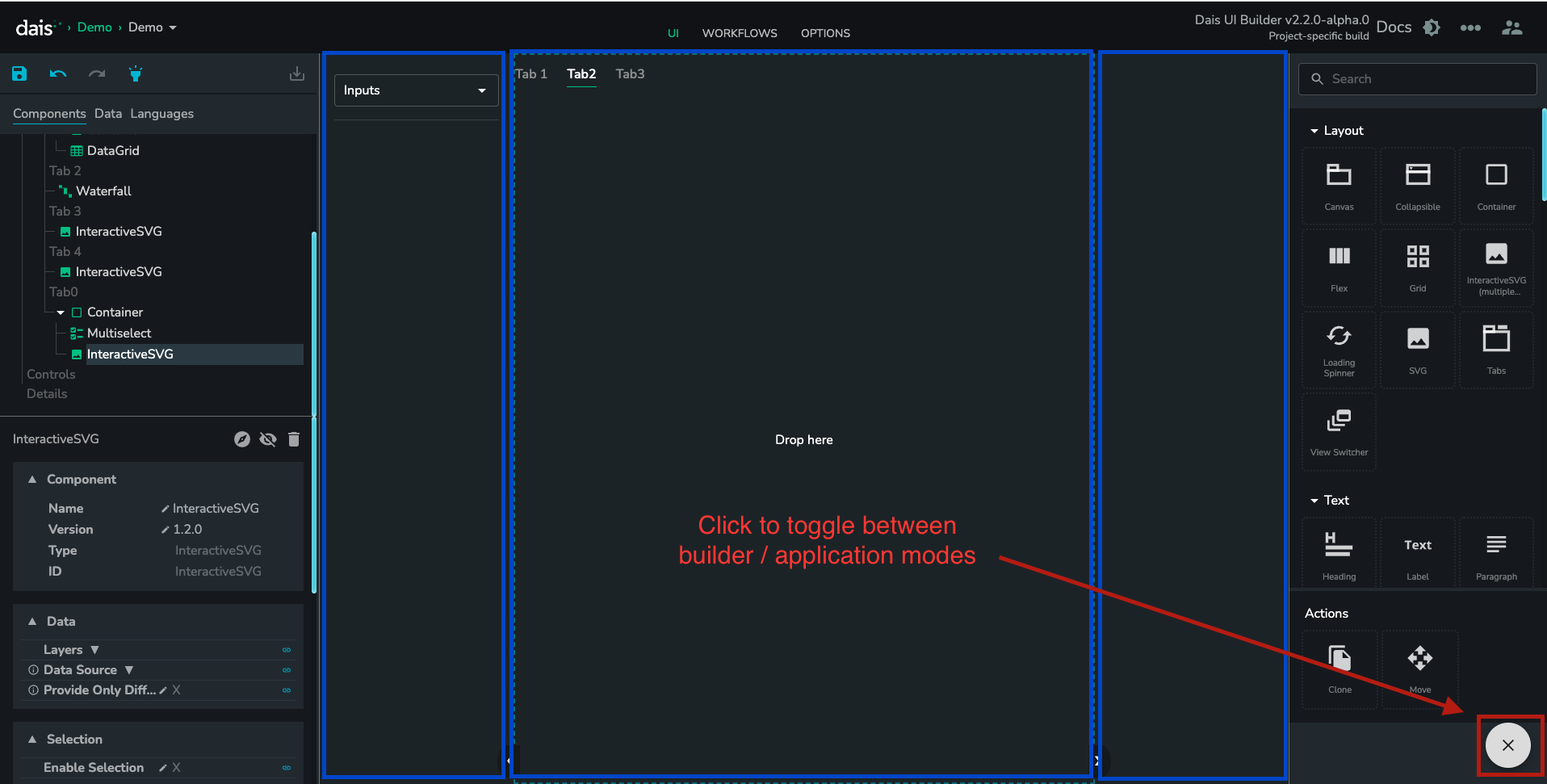
A cross indicates you are already in "UI Builder Mode" so clicking it will toggle into "Application Mode".
Layout
The layout where you will build your app is split into 3 major sections, the Left Hand Side (LHS), the Middle section, and the Right Hand Side (RHS).
Control / LHS Holder
The control section is on the left side of the app. The control section should house information such as:
- High level configuration options for the model.
- Any inputs that interact with the visualization in the middle/canvas section
Canvas / Middle Holder
The Canvas is the largest section of the application where the majority of visualizations or large components that require interaction should go. This is a good place for charts, tables, or Gantt chart type components.
Details / RHS Holder
The details section is on the RHS of the app. This is where you would house supplementary information for the canvas, or more detailed information about anything selected in the canvas. An example of this is more information about a ship that is selected on a Gantt chart in the canvas.