Multimedia
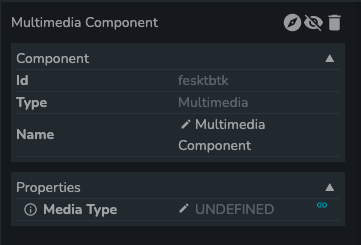
The multimedia component supports image, audio, video types of files. After app creators upload appropriate multimedia files into multimedia-content/ of file manager service, using the upload button in the App Admin screen, contents could be rendered and served back to the UI Builder by this multimedia component.
Properties
Media Type
Media type of the file which app creators want to serve up. This is a dropdown list whose values are Video, Image, and Audio.
File Manager Reference

File manager reference of the file being served up. This must start with multimedia-content/ and follow with the relative directory and file name. For Video, it's defaulted to be multimedia-content/video.mp4; for Image, it's defaulted to be multimedia-content/image.png and multimedia-content/audio.mp3 for Audio media type.
Upon clicking, the component will display two buttons, Upload and Select. Upload button allows users to directly upload multimedia files to file manager within UI Builder and it can only upload to the multimedia-content/ directory. If uploading succeeds, the corresponding file manager reference and multimedia content will be rendered automatically. Otherwise, error message will pop up and file manager reference becomes UNDEFINED. Users can click it to upload again.
Select button allows users to browse & select what they've uploaded to multimedia-content/ directory. After selection, file manager reference and multimedia content will be rendered automatically.
Anyone with app access will be able to view & access the multimedia content. However, only app creators, owners/maintainers have the full access to the multimedia component. (i.e. Upload & Select buttons)
Video Properties
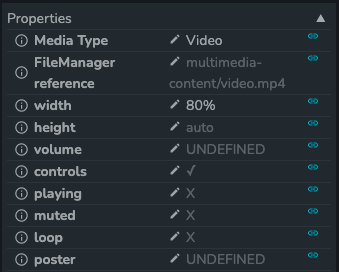
The following properties will show up accordingly if you select Media Type to be Video.
Width
Width of the video file. Defaulted to 100%.
Height
Height of the video file. Defaulted to auto, which means the height will be re-adjusted automatically if width gets changed.
Volume
Number. Sets the volume of the played video. Range starts from 0 to 1. Defaults to undefined.
Controls
Boolean. Allow app consumers to control video playback, including volume, seeking, and pause/resume playback. Defaulted to true.
Playing
Boolean. Plays or pauses the video. Defaults to be false.
Muted
Boolean. If set to true, video will be initially silenced. Defaulted to false.
Loop
Boolean. If set to true, the video will automatically seek back to the start upon ending. Defaulted to false.
Poster
File manager reference of the thumb nail image of the video. This must start with multimedia-content/ and follow with the relative directory and file name.
Image Properties
The following properties will show up accordingly if you select Media Type to be Image.
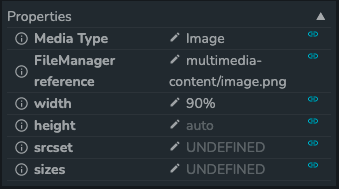
Width
Width of the image file. Defaulted to 100%.
Height
Height of the image file. Defaulted to auto, which means the height will be re-adjusted automatically if width gets changed.
Srcset
String. The URL of the image to use in different situations.
Sizes
String. One or more strings separated by commas, indicating a set of source sizes.
Audio Properties
The following properties will show up accordingly if you select Media Type to be Audio.
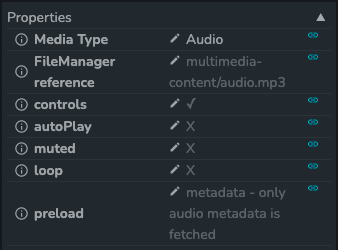
Controls
Boolean. Allow app consumers to control audio playback, including volume, seeking, and pause/resume playback. Defaulted to true.
AutoPlay
Boolean. If set to true, audio will automatically begin playback. Defaulted to false.
Muted
Boolean. If set to true, audio will be initially silenced. Defaulted to false.
Loop
Boolean. If set to true, the audio will automatically seek back to the start upon ending. Defaulted to false.
Preload
Specifies how app creators thinks the audio file should be loaded when the page loads. Options:
none: the browser should NOT load the audio file when the page loads.metadata: the browser should load only metadata when the page loads.auto: the browser should load the entire audio file when the page loads.
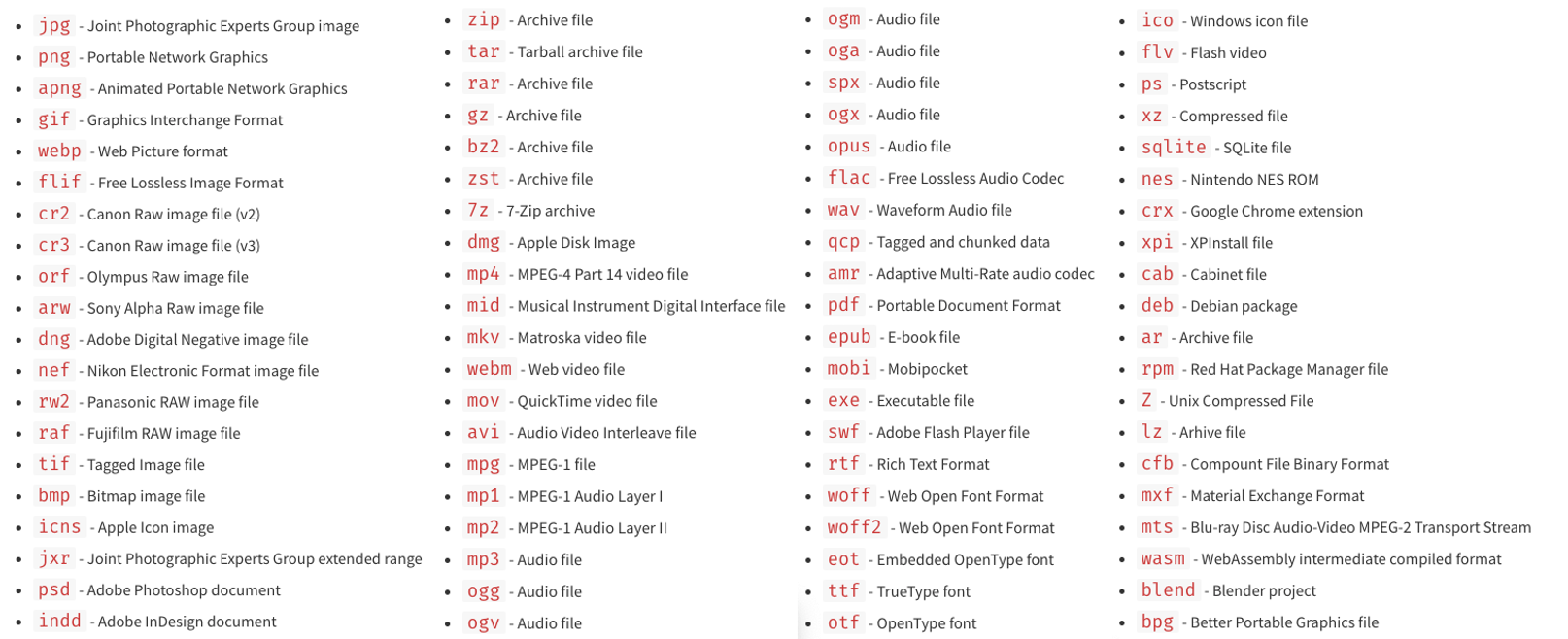
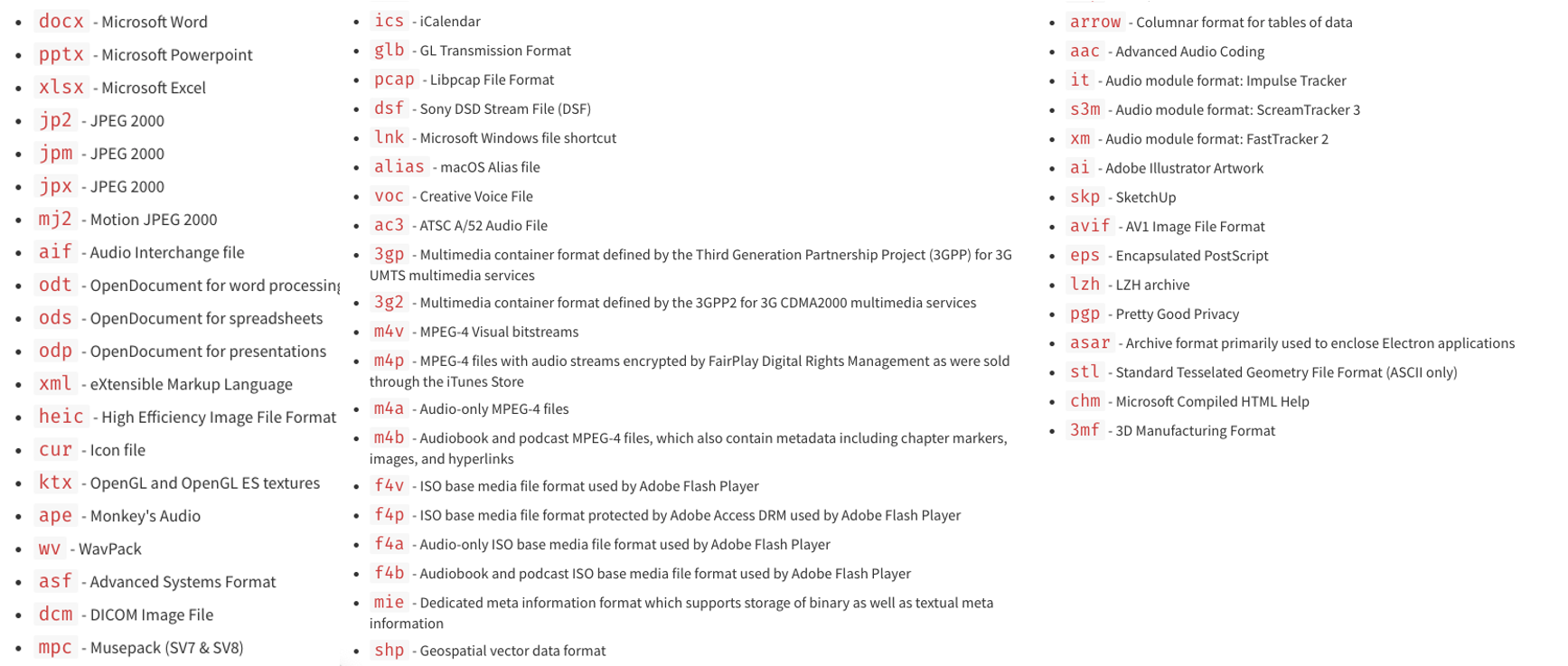
Supported File Types