Triggering Workflows
In Creating your first workflow, we want the Heading component to always display the up-to-date result of the multiplication - in other words, we want the workflow to run whenever the user changes the Slider values. This is the default behaviour of a new workflow.
But we may need other kinds of workflow to only run in response to a 'trigger'. For example, we may want a model-running workflow to only run when the user presses a 'Run model' button.
This behaviour is configured via the Workflow triggers panel:
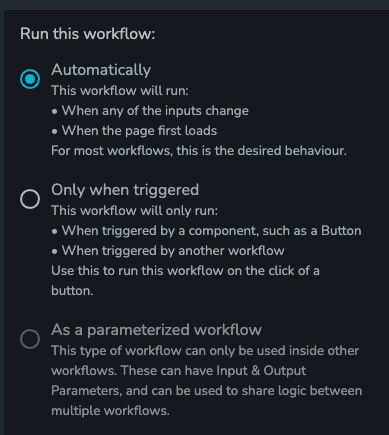
Continuously Run
This is the default behaviour of a workflow. The workflow will be run automatically - usually when the page loads, and whenever the inputs change. However, App Builder will make decisions on when to run these workflows in order to optimize the performance of the app.
Only Run When Triggered
When this option is selected, the workflow will not be run when the inputs change. The workflow must be explicitly 'triggered' to run. This can be via a UI element (i.e. a button), or via a Trigger workflow step in a different workflow.
Example
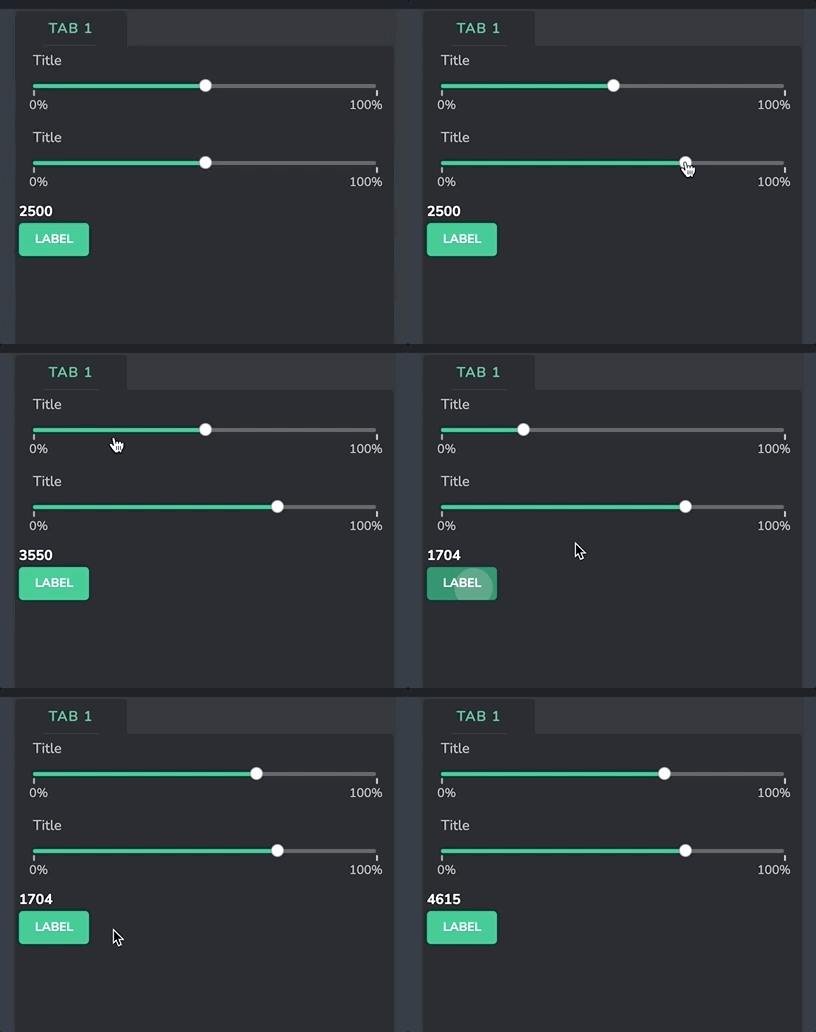
If we take the example from Creating your first workflow and enable this option, you will notice a couple things:
- The value displayed in the
Headingcomponent will not change when you touch the Sliders - If you save & refresh the page, you will see the
Headingcomponent showing a blank string. This is because the Workflow has not been run when the page loaded, so the output data is not available to theHeadingcomponent. This output data will become available when the workflow is triggered & run for the first time.
Now, add a Button - workflow component to the app, and for the Workflow trigger property, select the workflow. You should now see that when you press the button, the workflow is run, and the value of the Heading component is updated: