UI Testing
User interface (UI) testing is an important element of the software testing cycle that validates whether applications work in the expected way and that users understand how to use them. This ensures the users are comfortable using the app and derive value from it.
What is UI Testing?
UI testing is a technique for testing the features of an app that a user will interact with. This usually involves testing the visual components to ensure that they are meeting the outlined requirements - in terms of functionality, performance, and that they look as expected.
The main aspects to look out for in UI testing include:
- Visual aspects of the app
- Functionality
- Usability
- Performance
- Compliance
UI Testing Checklist
The scope of the testing cases can be very broad and depends on the details and use-cases of a specific app. However, there are some general test cases to look out for when doing manual UI testing. Some of them can be found below.
- Data type errors – Ensure only valid data can be entered for specific data types such as currency and dates. And that these data types are displayed correctly.
- Component widths – If a certain text box permits a specified amount of characters, then make it clear on the user interface that the data entered shouldn’t exceed the character limit.
- Navigational elements – Verify all navigational buttons on the page are working correctly, and that they redirect users to the right page or screen.
- Table scrolling – If data in your tables extends to another page, then the scroll function should allow users to scroll the data but keep all headers intact. Data and components should not be cut off.
- Error logging – for invalid use input most Dais components should give a descriptive message. However, in unexpected scenarios the user should generally see an error displayed coming from the component.
- Menu items – Ensure the application only displays valid menu items that are available at a particular state. For an app editor these will be the tabs for navigating to Workflows or Options, only available in the edit mode. The user should have the right permissions to edit an app.
- Confirm action buttons – When the user is making changes to an app, the save button should be enabled. After saving the changes should persist when reloading the app.
- Interaction - if the app allows user interaction (e.g. selecting items on click) this should be tested as well.
- API calls - some app make API calls that should work.
UI Testing Scenarios
When performing a UI test, it can be very useful to create a test plan with specific test cases tailored to an app that identify the areas of an application that should be tested.
A test scenario is a document that highlights how the application under test will be used in real life.
Detecting UI Builder Version
In order to see which UI Builder version the app has the user has to open the edit mode of the app and see the version in the top-right corner of the screen.

Detecting Component Version
UI Builder component can have multiple app versions. This is important as some older apps might need to use an older version of a component for backwards compatibility. If a component has multiple versions there will be an indicator in the component selector:
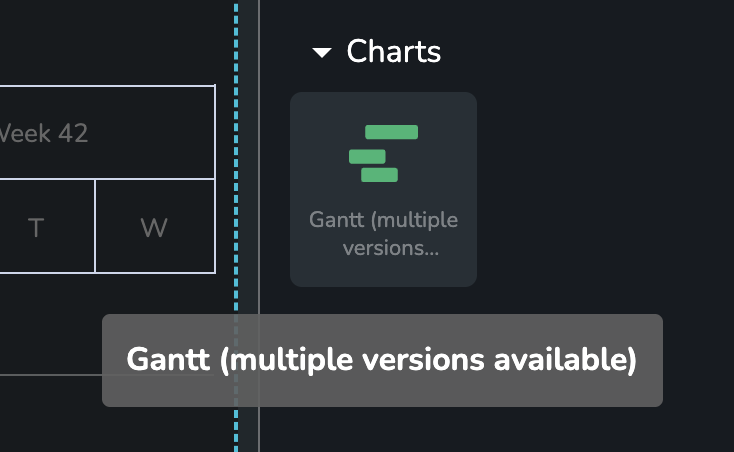
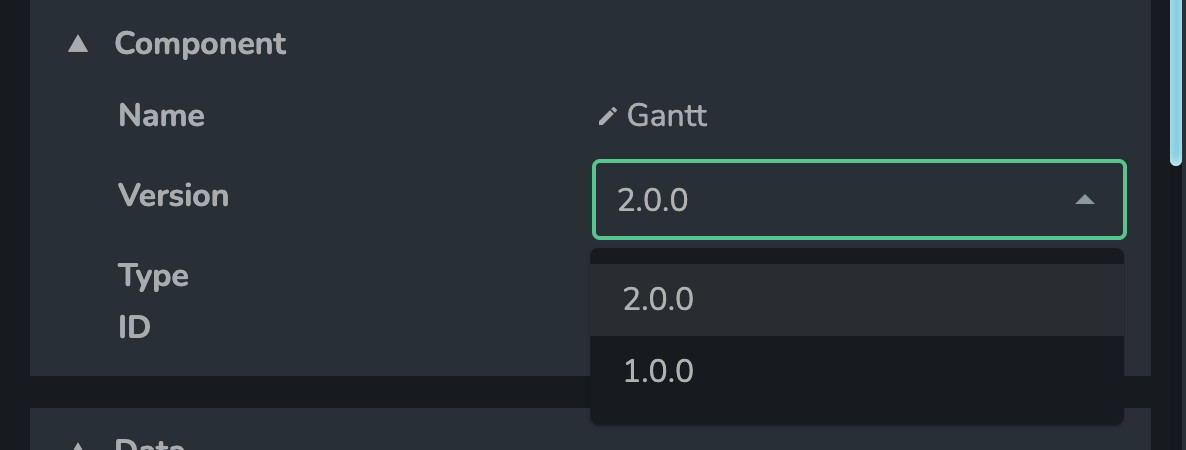
If that is the case the user will be able to select the desired version in the component's version selector.
Theming
If an app supports both dark and light modes. It is important to pay attention to both as custom colors need to applied to each theme separately.
Finding the right components
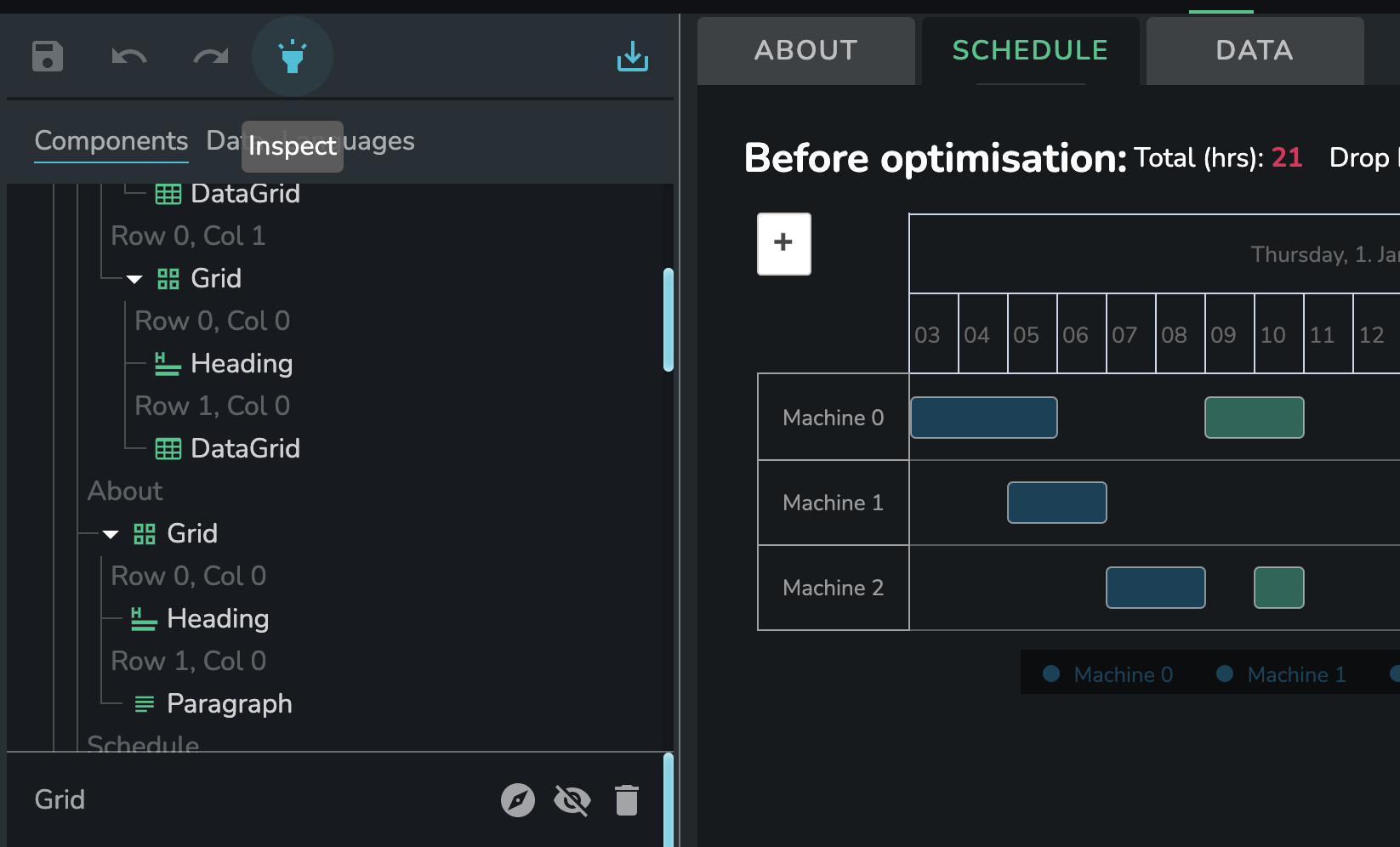
Some complex apps can have quite a few items in the component tree. The easiest way to find the component you are looking for is to use the Inspect button that you can find in the top-left corner of the app in the edit mode.
The inspection mode lets you click on a component that is in turn automatically selected in the left-hand side panel when click on it.