Using File Manager in a Persistent Service
Introduction
The Dais File Manager provides an interface to your applications persistent cloud storage. This guide will help you understand how to use File Manager from your own backend service when it's running both locally and within Dais.
Local Development
A File Manager "proxy" is available that emulates File Manager in your local development environment, allowing you to locally develop and test services that interact with File Manager.
Using the File Manager Proxy
Step 1 - Add the File Manager Proxy Source Code
You can include the File Manager Proxy Service in your own backend service as follows:
- Download the folder named
fm-proxyfrom the Dais persistent-service-examples to your local computer. - Include the folder in the root directory of your backend service.
If you would like to modify the persistent-service-examples service to your specific needs:
- Clone the repo from here.
- Create a virtual environment called
.venv:python -m venv .venv
- Activate the virtual environment.
- Install the development dependencies:
pip install -r requirements-dev.txt
Configure your Docker Compose File
Add the following code to the Docker Compose file of your service under the services section:
services:
    fm-proxy:
        build:
        context: ./fm-proxy
        environment:
        DAIS_LOCAL: 1
        DEBUG: 1
        ports:
        - "${FM_PROXY_PUBLISH_PORT}:8082"
        volumes:
        - ./data/file-manager:/data
Run the File Manager Proxy
Execute the following command:
docker compose up
The service will start running at http://localhost:8082/
Test the File Manager Proxy with Postman
Add the following requests to Postman:
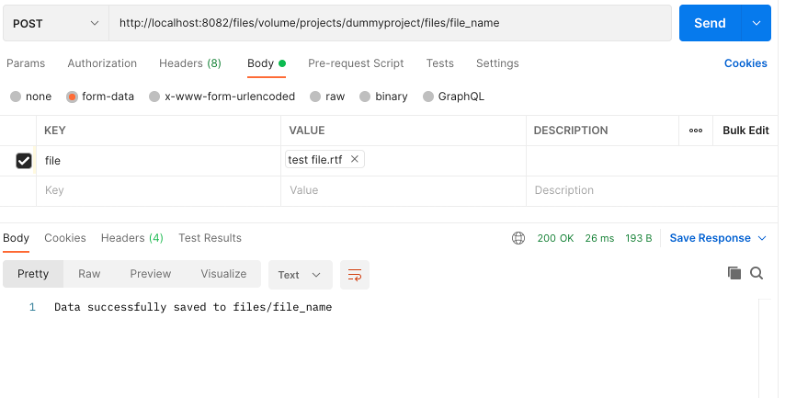
Upload File
- URL: http://127.0.0.1:8082/files/volume/projects/dummyproject/files/<your_file_name>
- HTTP Method:
POST - Body: pass form data
- Key:
file - Type:
File - Value:
select file to upload
Get File
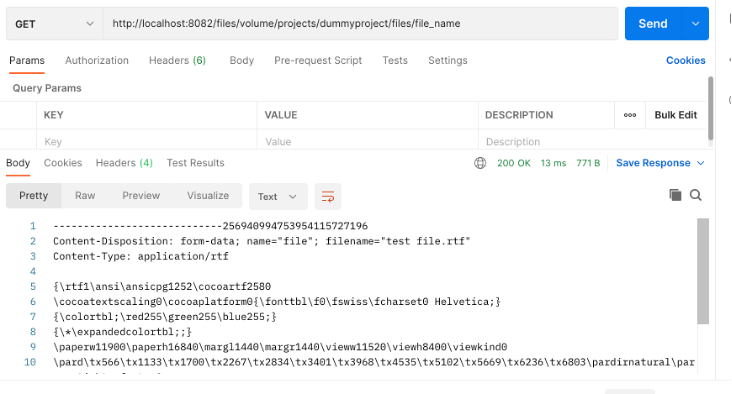
- URL: http://127.0.0.1:8082/files/volume/projects/dummyproject/files/file_name
- HTTP Method:
GET
Running in Dais
File Manager can be accessed from your backend service running in Dais either by writing your own code or via the standard Dais File Manager library.
File Manager Library
The File Manager library is a Python file that contains all the required functions required to interact with File Manager.
To include this library in your backend service, go to the Dais persistent-service-examples repository and download the shared folder. This folder contains a common sub-folder with a file_manager.py file that has all the functions required to interact with the File Manager.
After downloading the shared folder, include the folder in the root directory of your model/backend service. You can also copy the file_manager_access.py file from the model/src folder of the bike-shop-model-example to the src folder of your service.
Python Example
Once you have included the library in the service directory, re-run the service.
To access File Manager from your Persistent Service, refer to this directory and follow these steps:
a. Go to the model/src/file_manager_access.py file or equivalent and add a new async function for any specific operation like getting a file content, uploading a file. There is a Python script which has all the major functions generally required for File Manager operations at /shared/common/file_manager.py.
b. Go to the model/src/web.py file or equivalent and create a new function to access the specific function created above in the file_manager_access.py file. For example, there is a function named get_files_list
async def get_file_list(request: web.Request) -> web.Response:
    try:
        '''Returns a JSON list of files stored in a File Manager location'''
        file_manager = request.app[WEB_APP_FILE_MANAGER]
        files_list=await file_list(file_manager,FILE_MANAGER_SOURCE_DIR_PATH)
        print(files_list)
        return web.json_response(files_list)
    except Exception as exc:
        logger.exception(exc.message)
        return web.json_response(status=500)
c. Create a new route in web.py file and you should be ready to test your new endpoint
app.router.add_route("GET", "/getFilesList", get_file_list),
Postman Example
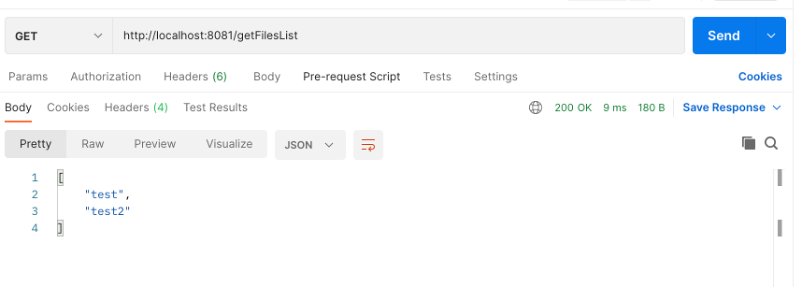
Get Files List
- URL: http://localhost:8081/getFilesList
- HTTP method:
GET